
Defining the View: Building the User Interface
Every application has a user interface. It can be a tedious and infuriating task to design user interfaces without a good program to help you. Interface Builder, an application supplied with Xcode, makes designing user interfaces simple, and so turns a tedious task into something easy.
This chapter teaches you how Interface Builder integrates with Cocoa. It guides you through building the user interface for your application. You learn where to locate the tools you need and how to use the features in Interface Builder to create the perfect user interface for your application.
In this section:
User Interface Elements and Interface Builder
Creating the Currency Converter Window
Refining the Layout and View Functionality
Test the Interface
What’s Next?
User Interface Elements and Interface Builder
Interface Builder is an application that helps you design the user interface and connect the different parts of your application. It contains a drag-and-drop interface for UI design, and an inspector that allows you to view and change the properties of the various objects in your design, as well as the connections between them.
What Is a Nib File?
Every Cocoa application with a graphical user interface has at least one nib file. The main nib file is loaded automatically when an application launches. It contains the menu bar and generally at least one window along with various other objects. An application can have other nib files as well. Each nib file contains:
Archived objects. Also known in object-oriented terminology as “flattened” or “serialized” objects—meaning that the object has been encoded in such a way that it can be saved to disk (or transmitted over a network connection to another computer) and later restored in memory. Archived objects contain information such as their size, location, and position in the object hierarchy. At the top of the hierarchy of archived objects is the File’s Owner object, a proxy object that points to the actual object that owns the nib file (typically the one that loaded the nib file from disk).
Images. Image files are files that you drag to the nib file window or to an object that can accept them (such as a button or image view).
Class references. Interface Builder can store the details of Cocoa objects and objects that you place into static palettes, but it does not know how to archive instances of your custom classes since it doesn’t have access to the code. For these classes, Interface Builder stores a proxy object to which it attaches your custom class information.
Connection information. Information about how objects within the class hierarchies are interconnected. Connector objects special to Interface Builder store this information. When you save a document, its connector objects are archived in the nib file along with the objects they connect.
Windows and Menus in Cocoa
Windows have numerous characteristics. They can be onscreen or offscreen. Onscreen windows are “layered” on the screen in tiers managed by the window server. A typical Cocoa window has a title bar, a content area, and several control objects.
Key and Main Windows
Onscreen windows can carry a status: key or main. Key windows respond to keypresses for an application and are the primary recipient of messages from menus and panels. Usually, a window is made key when the user clicks it. Each application can have only one key window.
An application has one main window, which can often have key status as well. The main window is the principal focus of user actions for an application. Often user actions in a key window (typically a panel such as the Font window or an Info window) have a direct effect on the main window.
NSWindow and the Window Server
Many user interface objects other than the standard window are windows. Menus, pop-up lists, and pull-down lists are primarily windows, as are all varieties of utility windows and dialogs: attention dialogs, Info windows, drawers, utility windows, and tool palettes, to name a few. In fact, anything drawn on the screen must appear in a window. Users, however, may not recognize or refer to them as windows.
Two interacting systems create and manage Cocoa windows. A window is created by the window server. The window server is a process that uses the internal window management portion of Quartz (the low-level drawing system) to draw, resize, hide, and move windows using Quartz graphics routines. The window server also detects user events (such as mouse clicks) and forwards them to applications.
The window that the window server creates is paired with an object supplied by the Application Kit framework. The object supplied is an instance of the NSWindow class. Each physical window in a Cocoa program is managed by an instance of NSWindow or a subclass of it. For information on the Application Kit, see What Is Cocoa? in Cocoa Fundamentals Guide.
When you create an NSWindow object, the window server creates the physical window that the NSWindow object manages. The NSWindow class offers a number of instance methods through which you customize the operation of its onscreen window.
Application, Window, View
In a running Cocoa application, NSWindow objects occupy a middle position between an instance of NSApplication and the views of the application. (A view is an object that can draw itself and detect user events.) The NSApplication object keeps a list of its windows and tracks the current status of each. Each NSWindow object, on the other hand, manages a hierarchy of views in addition to its window.
At the top of this hierarchy is the content view, which fits just within the window’s content rectangle. The content view encloses all other views (its subviews), which come below it in the hierarchy. The NSWindow object distributes events to views in the hierarchy and regulates coordinate transformations among them.
Another rectangle, the frame rectangle, defines the outer boundary of the window and includes the title bar and the window’s controls. Cocoa uses the bottom-left corner of the frame rectangle as the origin for the base coordinate system, unlike Carbon applications, which use the top-left corner. Views draw themselves in coordinate systems transformed from (and relative to) this base coordinate system.
Creating the Currency Converter Window
Currency Converter has a main window that the user will interact with. This section will guide you through the process of designing Currency Converter’s main window.
Create the Window
You use Interface Builder to define an application’s user interface. To open the Currency Converter’s main nib file in Interface Builder:
Locate
MainMenu.nibin the Resources subgroup of your project.Double-click the nib file. This opens the nib file in Interface Builder.
A default menu bar, the MainMenu.nib window, the Library, and an empty window titled Window appear when the nib file is opened.
Resize the Window
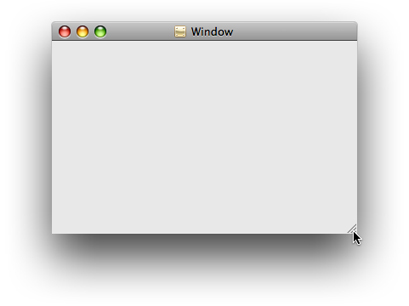
Make the window smaller by dragging the bottom-right corner of the window inward, as shown in Figure 4-1.
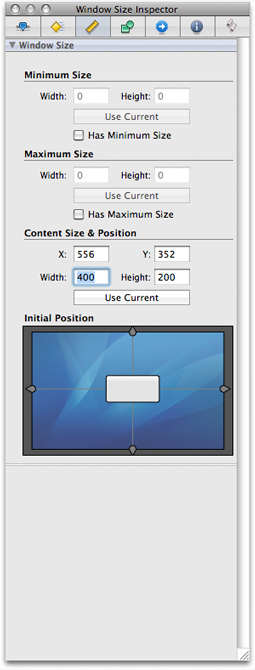
You can resize the window more precisely by using the Window Size inspector.
Choose Tools > Inspector.
Click the Size icon, which looks like a yellow ruler.
In the Content Size & Position group, you can set the width, height, and default x and y coordinates of the window.
Type new dimensions into the width and height fields, as shown in Figure 4-2.
In the Initial Position group, you see a graphical representation of your window and your screen. Drag the window to the top-left corner of the box for a traditional default position for your application.
Change the Title of the Window
Currently, when your application runs, its title will be Window. To change the title:
Select the Window object in the
MainMenu.nibwindow.Navigate to the Attributes tab in the Inspector.
Change the value of Title from Window to Currency Converter.
Add the Text Fields
The Library window of Interface Builder contains several user interface elements that you can drag into a window or menu to create an application’s user interface.
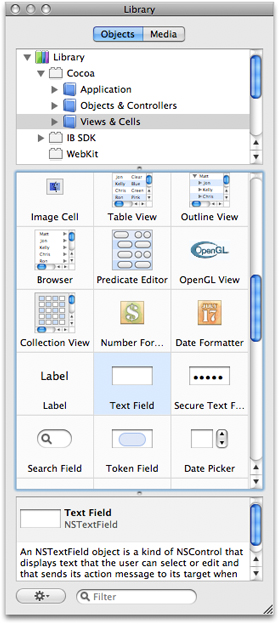
If the Library is not already open, shown in Figure 4-3—choose Tools > Library.
In the list at the top of the Library, open Library, then Cocoa, and select Views & Cells.
Notice how in Figure 4-3 the icons have labels. If you do not see labels, choose View Icons & Labels from the gear menu at the bottom of the window. This will make it easier to locate the objects you are looking for.
Place a text field in the Currency Converter window.
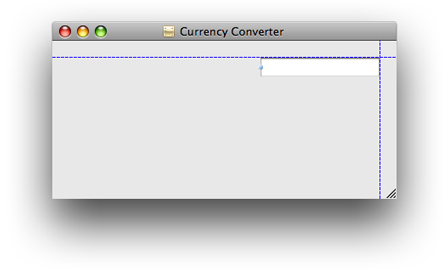
Find the Text Field item (shown highlighted in Figure 4-3) and drag the Text Field object from the library to the top-right corner of the window. Notice that Interface Builder helps you place objects according to the Apple human interface guidelines by displaying layout guides when an object is dragged close to the proper distance from neighboring objects or the edge of the window.
Increase the text field’s size so that it’s about a third wider.
Resize the text field by grabbing a handle and dragging in the direction you want it to grow. In this case, drag the left handle to the left to enlarge the text field, as shown in Figure 4-4.
Add two more text fields, both the same size as the first.
There are two options: You can drag another text field from the palette to the window and make it the same size as the first one, or you can duplicate the text field already in the window.
To duplicate the text field in the Currency Converter window:
Select the text field, if it is not already selected.
Choose Duplicate (Command-D) from the Edit menu. The new text field appears slightly offset from the original field.
Position the new text field under the first text field. Notice that the layout guides appear and Interface Builder snaps the text field into place.
To make the third text field, press Command-D again.
As a shortcut, you can also Option-drag the original text field to duplicate it.
Assign Labels to the Fields
Text fields without labels would be confusing, so add labels to them by using the ready-made label object from the library.
Drag a Label element onto the window from the Cocoa library.
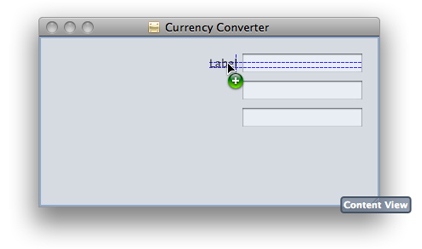
Make the text label right aligned:
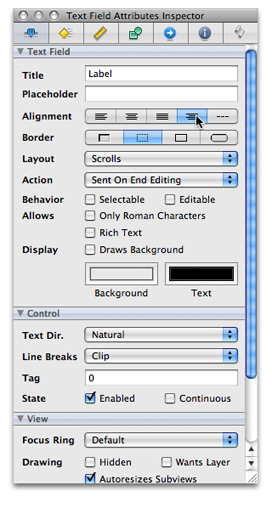
With the Label element selected, click the third button from the left in the Alignment area in the Text Field Attributes tab in the Inspector, as shown in Figure 4-5.
Enter
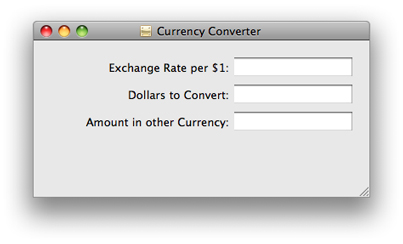
Exchange Rate per $1:in the Title text field.Duplicate the text label twice. Set the title of the second text label to “Dollars to Convert:” and the title for the third text label to “Amount in Other Currency:”.
Expand the text fields to the left so that their entire titles are visible, as shown in Figure 4-6.
Change the Text Field Attributes
The bottom text field displays the results of the currency conversion computation and should therefore have different attributes than the other text fields. It must not be editable by the user.
To make the text field that shows the result cannot be editable by the user:
Select the third text field.
In the Inspector, navigate to the Text Field Attributes tab.
Make sure the Editable option is deselected so that users are not allowed to alter the contents of the text field. Also make sure the Selectable option is selected so that users can copy the contents of the text field to other applications.
Configure a Button
The currency conversion should be invoked either by clicking a button or pressing Return. To add a button to the Currency Converter window:
Drag the Push Button object from the library to the bottom-right corner of the window.
Double-click the button and change its title to Convert.
In the Key Equiv. section of the Button Attributes inspector, click the gray box. Now press Return. A return symbol should appear in the gray box. This makes the button respond to the Return key as well as to clicks.
Align the button under the text fields.
Drag the button downward until the layout guide appears, and then release it.
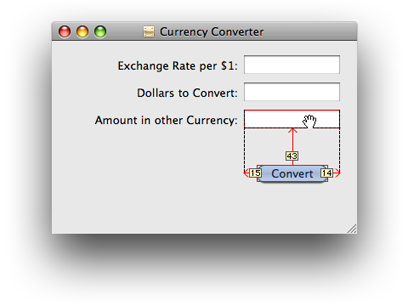
With the button still selected, hold down the Option key. If you move the pointer around, Interface Builder shows you the distance in pixels from the button to the element over which the pointer is hovering.
With the Option key still down and the pointer over the Amount in Other Currency text field, use the arrow keys to nudge the button so that its center is aligned with the center of the text field, as shown in Figure 4-7.
Add a Separator to Group Controls
The final interface for Currency Converter has a line separating the text fields and the button. To add the line to the Currency Converter window:
Drag a Horizontal Line object from the Library to the Currency Converter window.
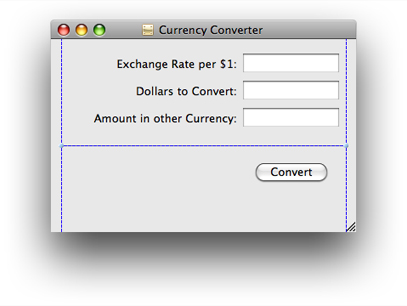
Drag the endpoints of the line until the line extends across the window, as shown in Figure 4-8.
Move the Convert button up until the layout guide appears below the horizontal separator, and shorten the window until the horizontal layout guide appears below the Convert button.
Refining the Layout and View Functionality
The Currency Converter window now contains all the necessary objects for it to function the way it is designed. This section guides you through formatting the window and menu to make it more user friendly.
Configure the Menu
By default, Interface Builder places the term NewApplication in place of the application name in the menu bar and throughout an application’s menu hierarchy. You must change this text to the application name in all menu items that include the application name, such as the application menu and the Help menu.
Rename the application menu:
In the MainMenu window, double-click NewApplication to highlight the text for editing.
Enter Currency Converter in place of the text and press Return.
Important: At runtime, the title of the application menu is determined by the value of the application-name property (the value of the
CFBundleNameinformation property list key), not the title you specify in the nib file. See “The Info.plist File” for details.
Modify items in the application menu.
In the MainMenu window, which looks like a program’s toolbar, click Currency Converter, double-click About NewApplication, and replace NewApplication with Currency Converter.
Change Currency Converter > Hide NewApplication to Hide Currency Converter.
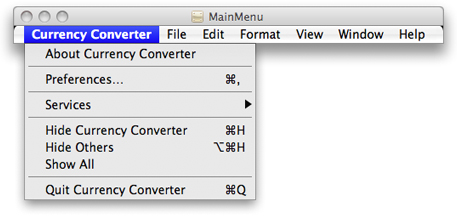
Change Currency Converter > Quit NewApplication to Quit Currency Converter. The Currency Converter application menu should now look like the one in Figure 4-9.
In the Help menu, change NewApplication Help to Currency Converter Help.
Aligning Objects in a Window
In order to make an attractive user interface, you must be able to visually align interface objects in rows and columns. “Eyeballing” the alignments can be very difficult; and typing in x/y coordinates by hand is tedious and time consuming. Aligning user interface elements is made even more difficult because the elements have shadows and user interface guideline metrics do not typically take the shadows into account. Interface Builder uses visual guides and layout rectangles to help you with object alignment.
In Cocoa, all drawing is done within the bounds of an object’s frame. Because interface objects have shadows, they do not visually align correctly if you align the edges of the frames. For example, Apple Human Interface Guidelines says that a push button should be 20 pixels tall, but you actually need a frame of 32 pixels for both the button and its shadow. The layout rectangle is what you must align. You can view the layout rectangles of objects in Interface Builder using the Show Layout Rectangles command in the Layout menu.
Interface Builder gives you several ways to align objects in a window:
Dragging objects with the mouse in conjunction with the layout guides
Pressing the arrow keys (with the grid off, the selected objects move one pixel)
Using a reference object to put selected objects in rows and columns
Using the built-in alignment functions
Specifying origin points in the Size pane in the inspector
The Alignment submenu in the Layout menu provides various alignment commands and tools, including the Alignment window, which contains controls you can use to perform common alignment operations.
Finalize the Window Size
The Currency Converter interface is almost complete. The finishing touch is to resize the window so that all the user interface elements are centered and properly aligned to each edge. Currently, the objects are aligned only to the top and right edges.
To finalize the Currency Converter window:
Select the Amount in Other Currency text label and extend the selection (Shift-click) to include the other two labels.
Choose Layout > Size to Fit to resize all the labels to their minimum width.
Choose Layout > Alignment > Align Right Edges.
Drag the labels towards the left edge of the window, and release them when the layout guide appears.
Select the three text fields and drag them to the left, again using the guides to help you find the proper position.
Shorten the horizontal separator and move the button into position again under the text fields.
Make the window shorter and narrower until the layout guides appear to the right of the text fields.
Select the Window object in MainMenu.nib
Since you have made the window the perfect size for its components, you don’t want the user to resize the window. In the Attributes tab of the Inspector, make sure the Resize checkbox under the Controls section is deselected.
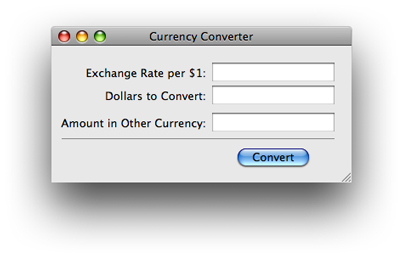
At this point the application’s window should look like Figure 4-10.
Enable Tabbing Between Text Fields
The final step in composing the Currency Converter user interface has more to do with behavior than with appearance. You want the user to be able to tab from the first editable field to the second, and back to the first. Many objects in the Interface Builder Library have an outlet named nextKeyView. This variable identifies the next object to receive keyboard events when the user presses the Tab key (or the previous object when Shift-Tab is pressed). A Cocoa application by default makes its “best guess” about how to handle text field tabbing, but this guess often produces unexpected results. If you want correct interfield tabbing, you must connect fields through the nextKeyView outlet.
To tab between text fields:
Select the Exchange Rate text field.
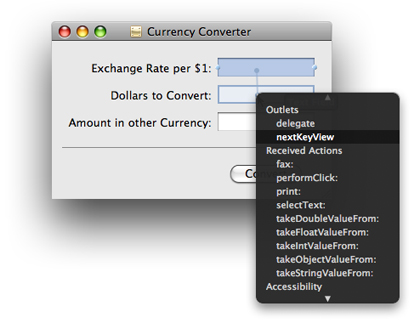
Control-drag a connection from the Exchange Rate text field to the Dollars to Convert text field, as shown in Figure 4-11. (To Control-drag, press Control, then drag the connection line.)
Select
nextKeyViewunder Outlets. This identifies the next object to respond to events after the Tab key is pressed.Repeat the same procedure, going from the Dollars to Convert text field to the Exchange Rate text field.
Now that you’ve set up tabbing between text fields, you must tell Currency Converter which text field will be selected first. You do this by setting an initialFirstResponder.
Set the First Responder Text Field
The initialFirstResponder is the default selected object when your application starts. If you do not set this outlet, the window sets a key loop and picks a default initialFirstResponder for you (not necessarily the same as the one you would have specified).
To set the initialFirstResponder outlet for the Currency Converter window:
Control-drag a connection from the Window instance in the
MainMenu.nibwindow to the Exchange Rate text field, as shown in Figure 4-12.Select
initialFirstResponder.
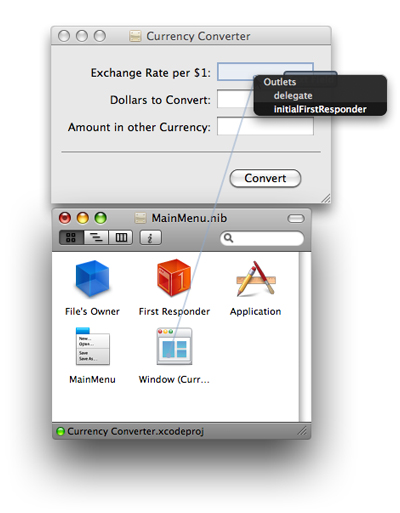
The Currency Converter user interface is now complete.
Test the Interface
Interface Builder lets you test an application’s user interface without having to write code. To test the Currency Converter user interface:
Choose File > Save to save your work.
Choose File > Simulate Interface.
Try various user operations, such as tabbing, and cutting and pasting between text fields.
When finished, choose Quit Cocoa Simulator from the application menu to exit test mode.
What’s Next?
In this chapter, you built the user interface for your application. You placed and organized all the various objects the user will interact with as they use the application, and you had them interact with each other. The next chapter will guide you through the creation of a controller that will help the view you just created interact with the model you implemented in the previous chapter.
© 2007 Apple Inc. All Rights Reserved. (Last updated: 2007-10-31)